
Before reading this page, make sure you understand Working with Data — Groups, Resource Types, and Prototypes.
Opening the window
Open the window from the Unity menu:Window > Vladislav Tsurikov > Mega World > Separate Windows).
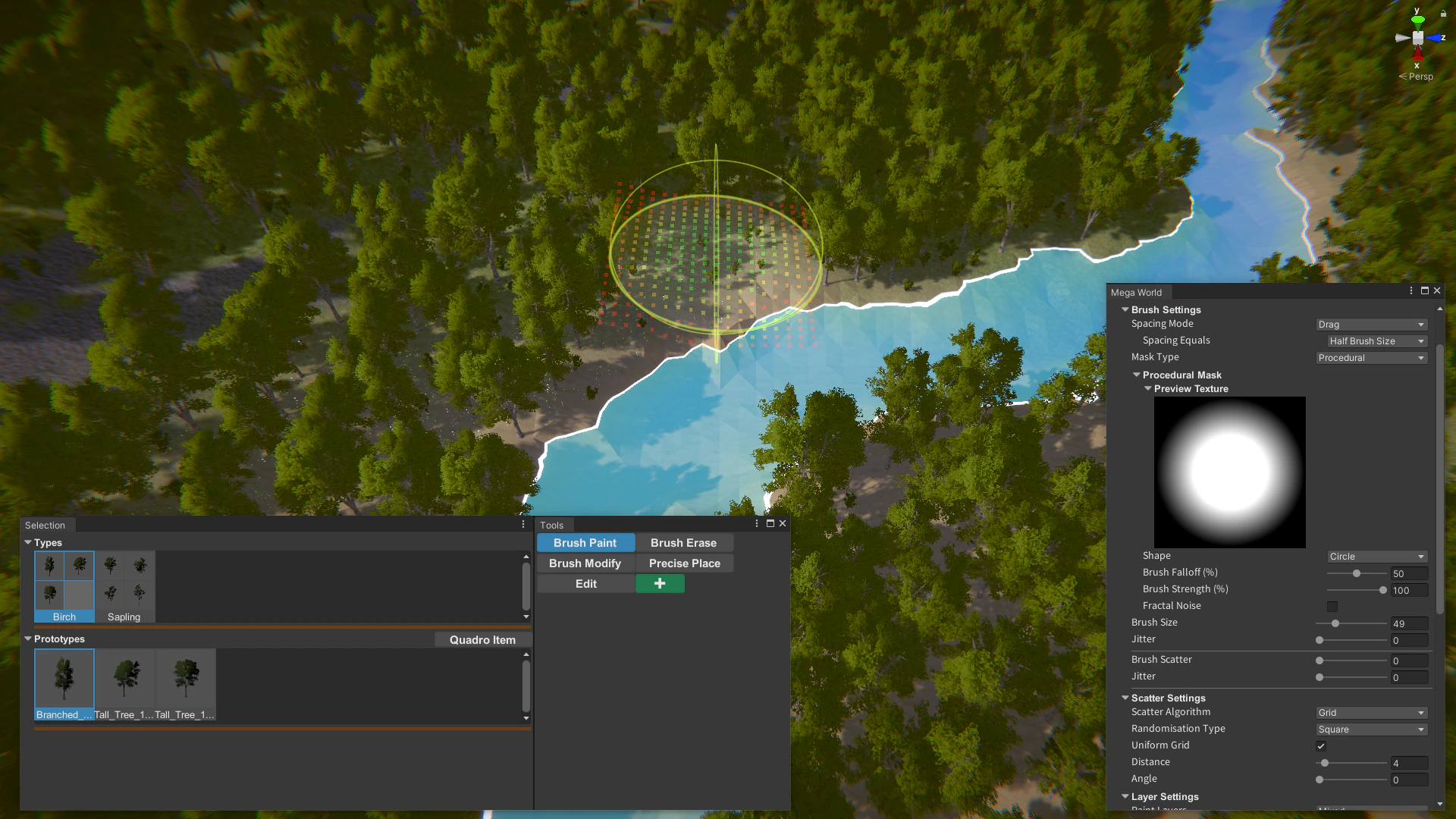
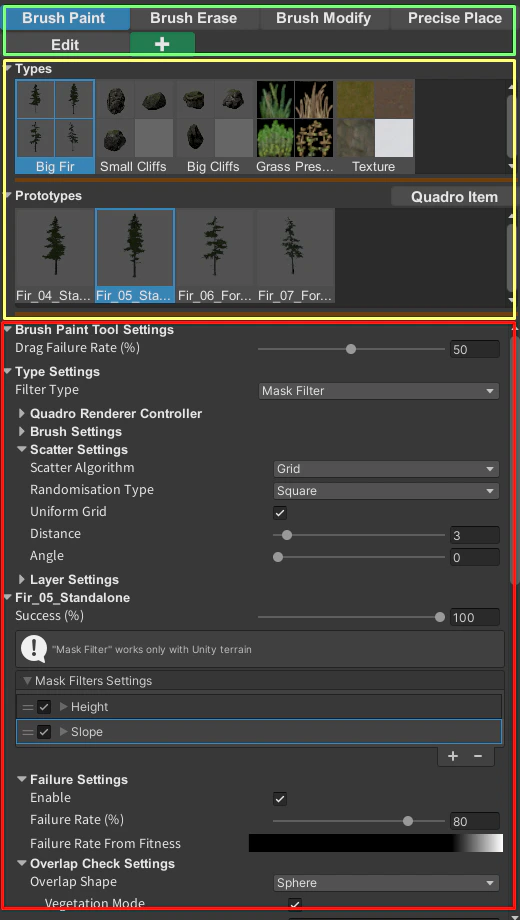
- Tools Panel — choose the active tool.
- Selection Panel — choose what the tool works with.
- Settings Panel — configure settings for that tool and those prototypes.
Tools Panel
The Tools Panel lets you choose which MegaWorld tool you want to work with.
Tool families
MegaWorld tools are grouped by workflow:- Stamper tools — Terrain Spawner, Texture Stamper, Gravity Spawner.
- Brush tools — Advanced Brush, Spray Brush, Brush Erase.
- PhysX Painter — Brush Physics, Precise Physics, Explode Physics, Physics Effects.
- Happy Artist — Brush Modify, Edit, Precise Place, Pin.
Managing tools
- Select a tool to make it active.
- Right-click a tool to remove it from the current layout.
- Reorder tools when you want frequently used tools closer together.
- Use the separate windows layout if you want the tool list in its own window.

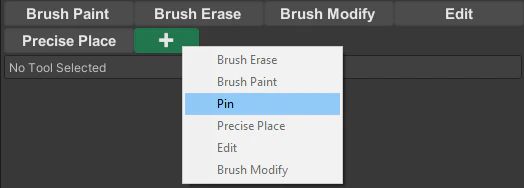

Keep your most-used tools visible and remove the rest temporarily. MegaWorld gets easier to navigate when the tool list matches your actual workflow.
Selection Panel
The Selection Panel controls what the active tool works with.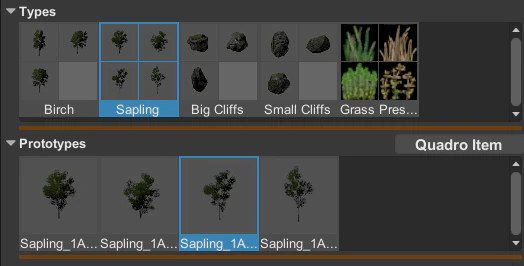
Main concepts
- Type is a reusable collection stored in the project. You can use types to organize similar prototypes, such as pines, rocks, or small trees.
- Prototype is the actual resource that MegaWorld uses in the scene.
Common resource types
Depending on the tool, MegaWorld can work with:- Unity/GameObject
- Unity/Terrain Detail
- Unity/Terrain Texture
- Terrain Object
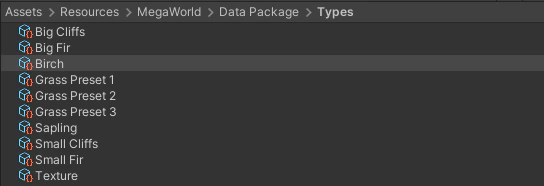
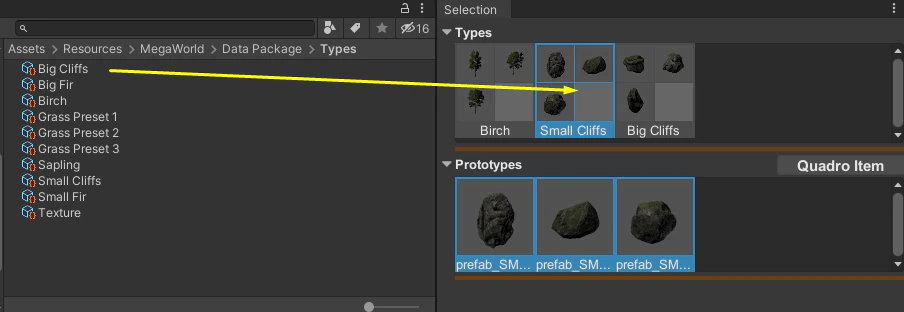
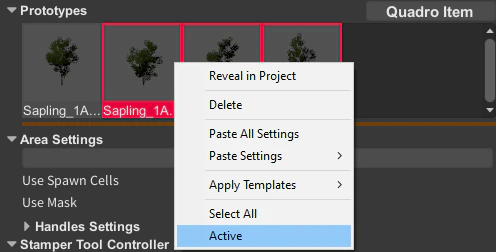
What you can do here
- Add prototypes to the current selection.
- Reorder types and prototypes.
- Copy and paste settings between selected items.
- Disable a prototype without removing it.
- Delete selected items from the selection set.
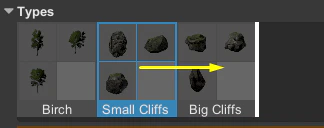
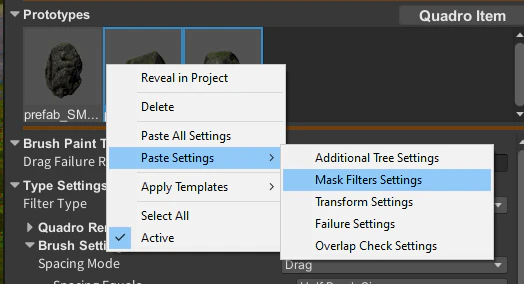
Why ordering matters
In many MegaWorld workflows, order is not just visual. It can affect:- which prototype wins selection more often;
- how you review and organize variations;
- how quickly you can tune groups of similar assets.
Recommended workflow
- Create or choose a type for the category you want to work on.
- Add the prototypes you want in that type.
- Disable weak variants instead of deleting them immediately.
- Tune shared systems such as filters, transform components, and overlap checks on the selected prototypes.
Settings Panel
The Settings Panel is where MegaWorld becomes specific to the current workflow.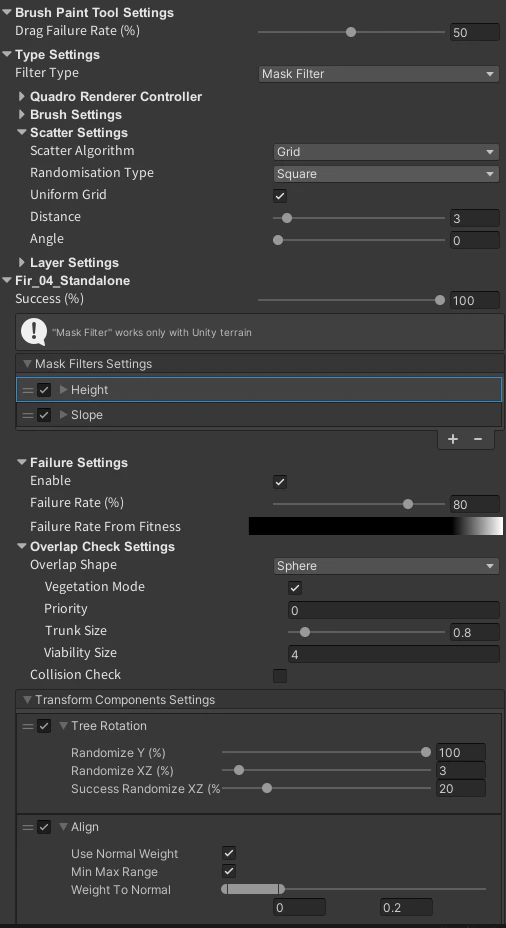
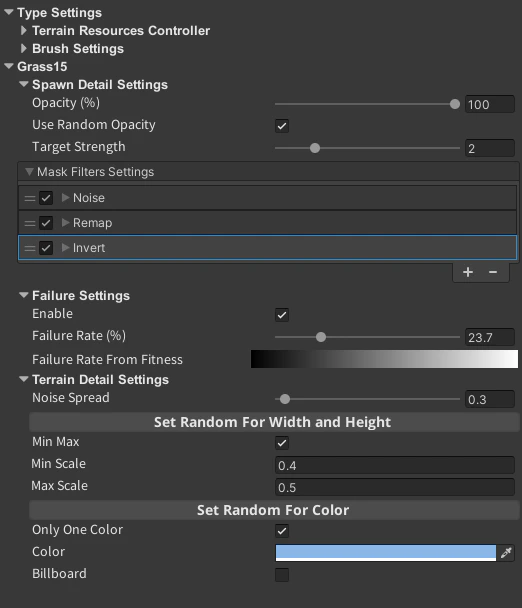
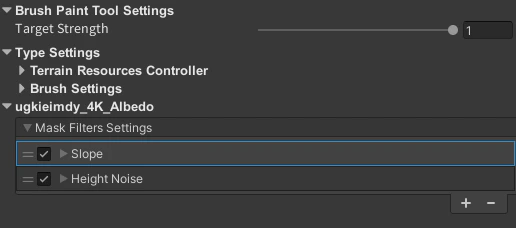
How settings are organized
MegaWorld combines two layers:- Tool settings — control how the tool behaves overall.
- Prototype settings — control how each selected item behaves inside that tool.
Shared systems you will see often
Several systems appear across multiple tools:- Mask Filters
- Transform Components
- Overlap Check Settings
- Spawn Detail Settings
- Terrain Detail Settings
- Additional Spawn Settings
Resource-type differences
The same tool can expose different settings depending on whether you selected a GameObject, Terrain Detail, Terrain Texture, or another supported resource type. That is why some screenshots from one workflow do not match another workflow exactly, even inside the same tool.When a tool feels complicated, break the Settings panel into layers: first tune the tool-level controls, then tune one prototype at a time, and only after that add advanced systems such as filters or transform stacks.
Hotkeys
| Shortcut | Action |
|---|---|
Alt + Z | Open the main MegaWorld window |
Alt + X | Open the separate windows layout |
Ctrl + Backspace | Remove all spawned data from selected prototypes |