
How It Works
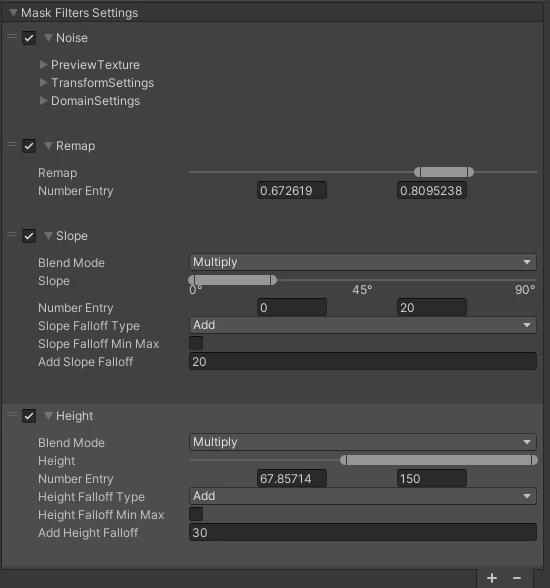
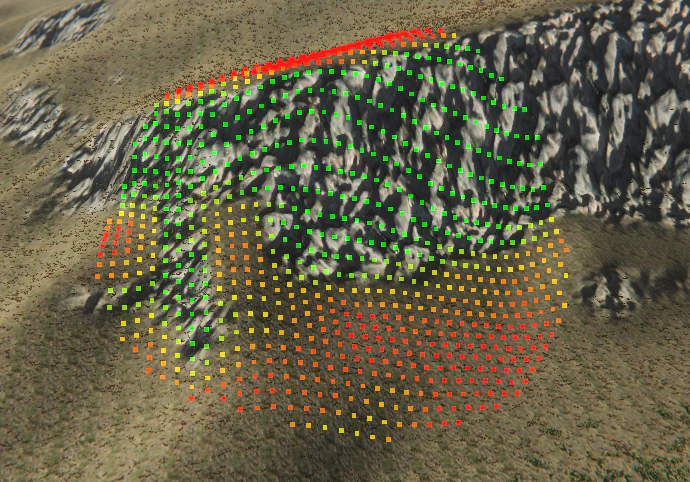
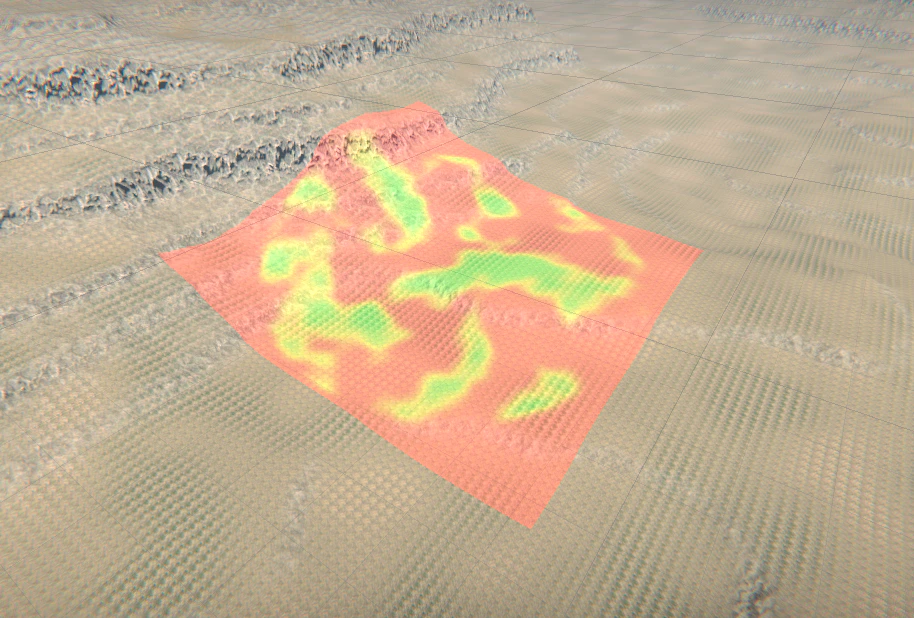
Each filter in the stack produces a mask (black = no spawn, white = spawn). Filters are applied in order:- The first filter in the stack always starts fresh (Multiply mode is applied automatically).
- Every subsequent filter blends its result with the previous mask using the Blend Mode you set.
- Multiply — combines masks multiplicatively. The result can only be equal to or smaller than either input. Use this to narrow down the spawn area.
- Add — combines masks additively. The result can only be equal to or larger than either input. Use this to expand or union spawn areas.
Simple filters vs mask filters
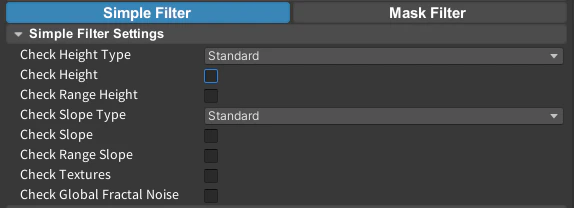
Filter Settings are split into two workflows:- Simple Filters are lighter and work with any mesh, not only Unity Terrain.
- Mask Filters are terrain-focused, GPU-evaluated, and support blendable mask operations for more advanced control.
Simple Filters
Mask Filters
Available Filters
Height Filter
Spawn within a defined height range with smooth falloff edges.
Height Noise Filter
Height filter with noise applied to the edges for a natural, irregular look.
Slope Filter
Spawn within a defined slope angle range.
Noise Filter
Add fractal noise to break up uniform spawn patterns.
Textures Filter
Restrict spawning to specific terrain texture layers.
Concavity Filter
Target recessed or exposed terrain features like valleys and ridges.
Aspect Filter
Target terrain faces pointing in a specific direction.
Smooth Filter
Blur the current mask to soften hard edges.
Expand Filter
Dilate the current mask outward.
Expand Down Filter
Dilate the mask downward only, respecting terrain height.
Image Filter
Use a custom texture as a mask.
Mask Operations Filter
Apply mathematical operations to the current mask (invert, clamp, remap, etc.).