
- Collision Check tests the candidate spawn against regular scene objects on the layers you choose.
- Overlap Shape tests the candidate spawn against other prototypes that were added through MegaWorld.
None, MegaWorld skips prototype-to-prototype overlap and only uses Collision Check.
Overlap Check Settings work especially well together with Transform Components and Mask Filters. First define where objects can spawn, then refine how they are transformed, and finally block bad placements.
Choose an overlap mode
- None disables prototype overlap checks.
- Bounds Check (OBB) is best for buildings, modular props, rocks, and any object that fits a box better than a circle.
- Sphere Check is best for trees, bushes, and other organic objects where radial spacing feels natural.
- Collision Check is best for blocking placement inside scene geometry such as buildings, colliders, roads, and other non-MegaWorld objects.
Visualization
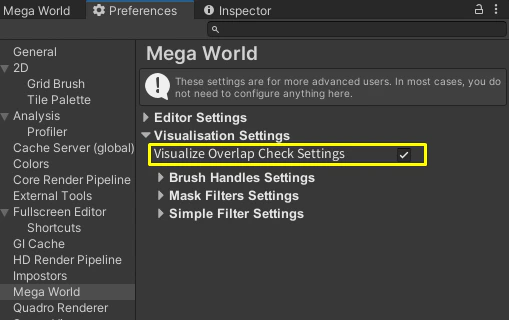
MegaWorld can visualize Overlap Check Settings directly in the scene view. This helps you understand the actual blocked area before you paint or spawn anything. Use this preview when you tune box bounds, sphere spacing, trunk and viability zones, or collision volumes.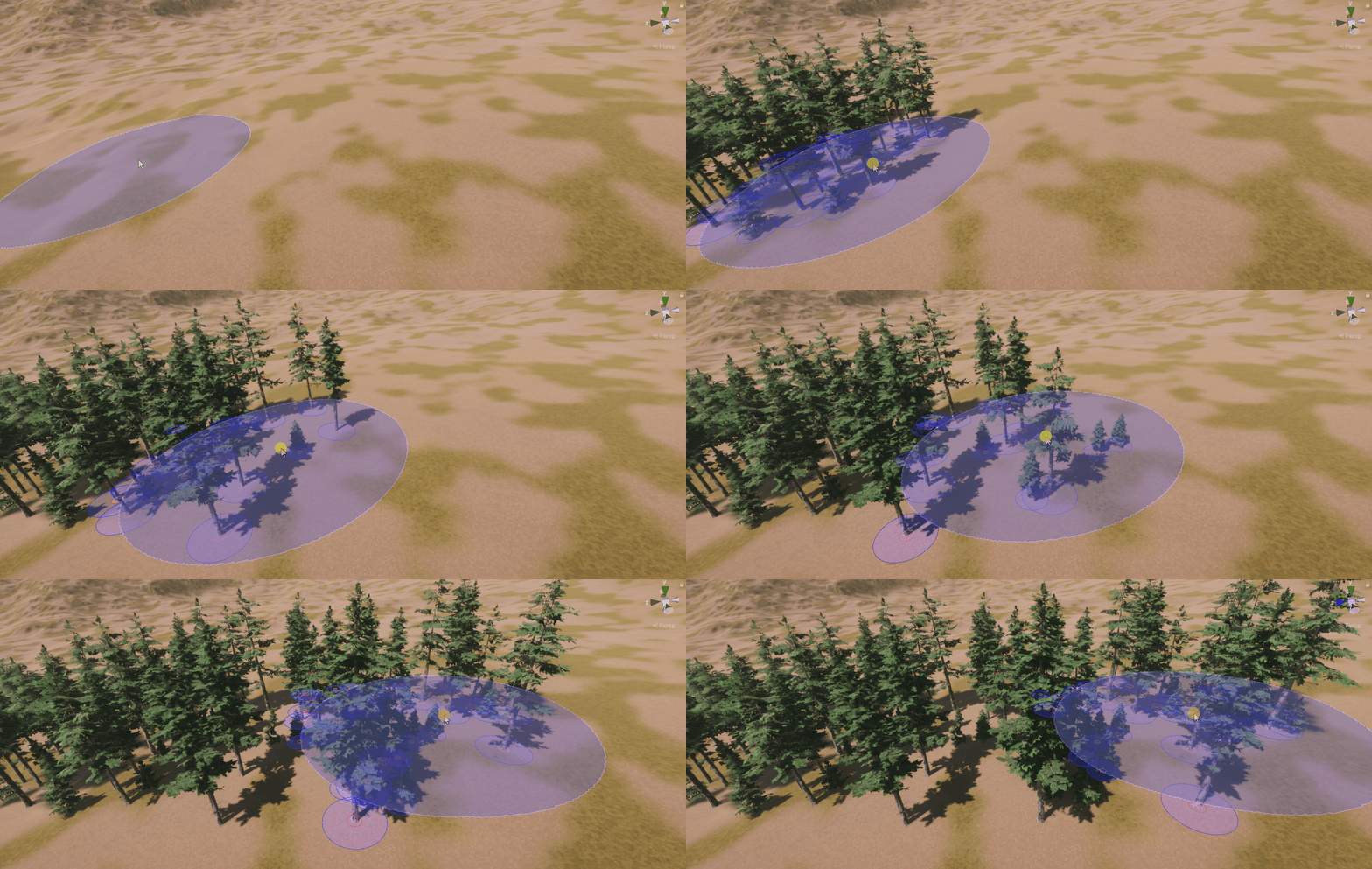
Bounds check
Use Bounds Check when you need a precise box-shaped volume. MegaWorld uses an oriented bounding box (OBB), so the check rotates with the object instead of staying axis-aligned.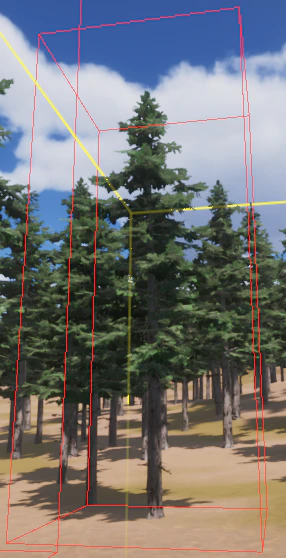

Settings
- Bounds Type chooses how MegaWorld builds the box.
- Bounds Prefab uses the prefab bounds, scaled by the spawned object’s scale.
- Custom lets you define the box size manually.
- Uniform Bounds Size uses one value for all three axes.
- Bounds Size sets the custom box dimensions.
- Multiply Bounds Size scales the final box up or down after MegaWorld builds it.
Start with Bounds Prefab. Switch to Custom only when the prefab bounds are too loose or too tight for the result you want.
Sphere check
Use Sphere Check when spacing matters more than exact shape. This mode is ideal for vegetation and other organic assets.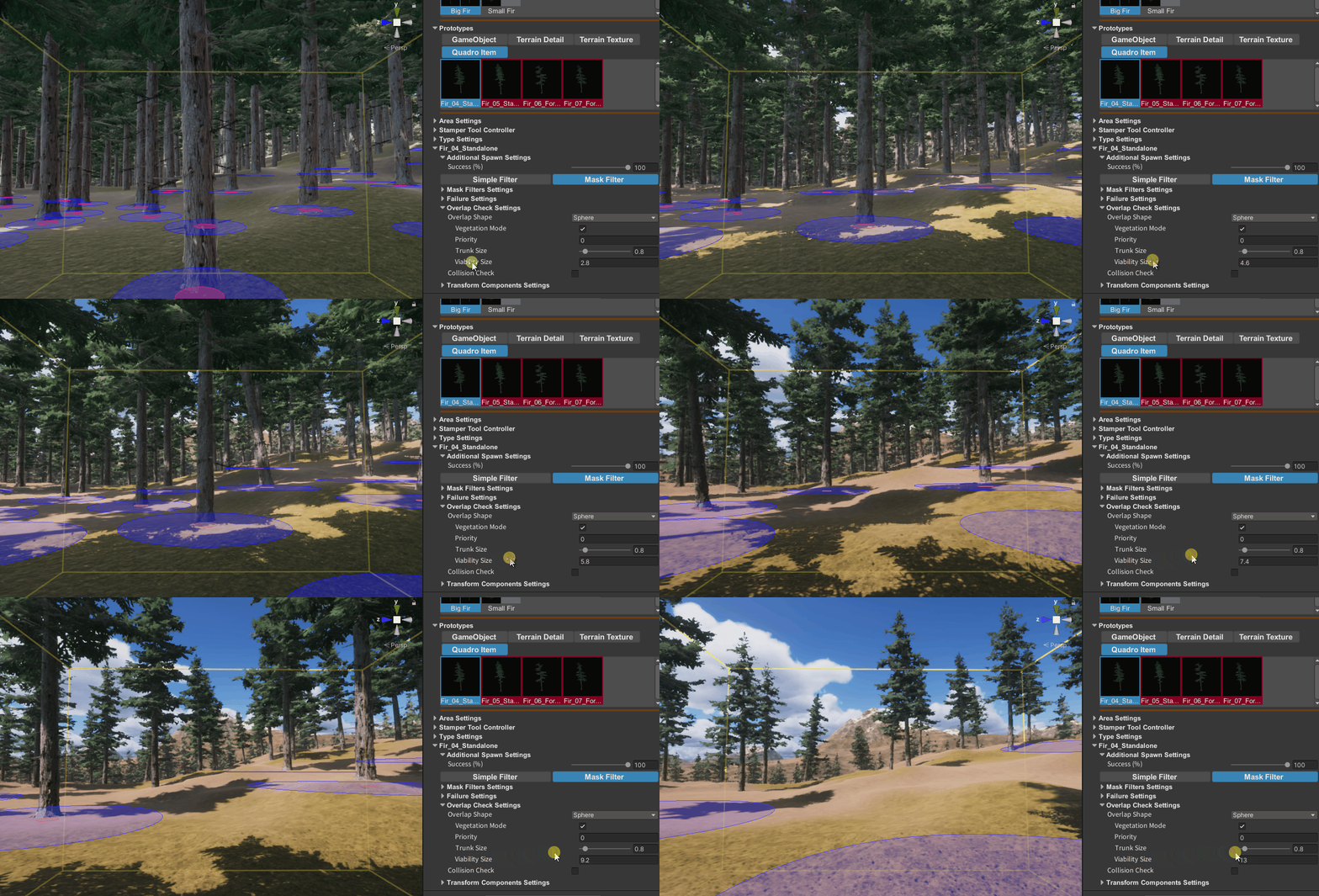
Vegetation mode
When Vegetation Mode is enabled, MegaWorld uses two zones:- A trunk zone, where other objects should never spawn.
- A viability zone, which acts like a softer spacing area around the object.
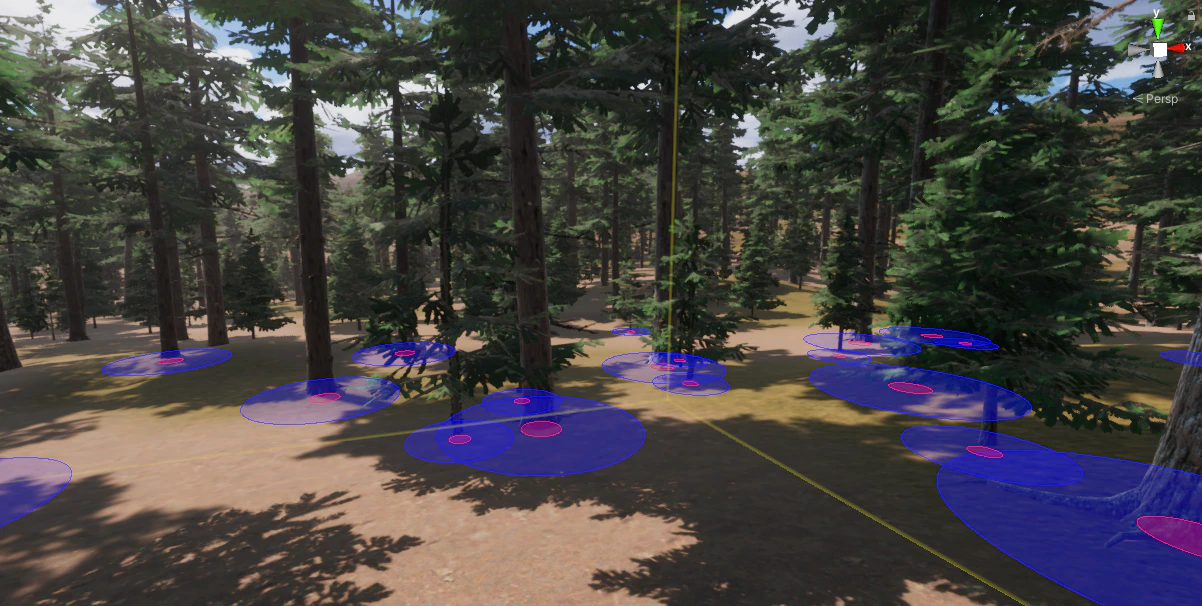
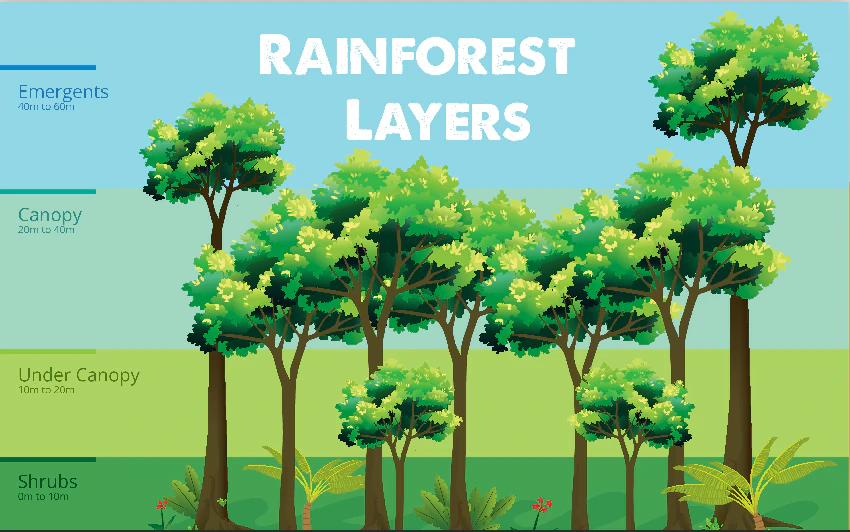
Vegetation Mode is useful for layered forests, because you can let smaller objects fill gaps without letting them cut through trunks.
- Vegetation Mode enables the layered spacing workflow.
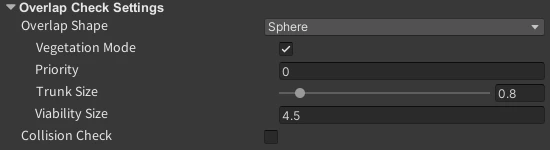
- Priority lets higher-priority objects ignore the viability zone of lower-priority objects. They still respect the trunk zone.
- Trunk Size defines the hard exclusion area close to the object.
- Viability Size defines the larger spacing area around the object.
Simple sphere mode
Disable Vegetation Mode if you only need one sphere around the object.
- Size sets the sphere size used for overlap.
Collision check
Use Collision Check to block placement inside existing scene geometry. Unlike Overlap Shape, this check is not limited to MegaWorld prototypes.

- Collision Check enables collision-based spawn rejection.
- Multiply Bounds Size scales the collision box before the check runs.
- Check Collision Layers chooses which layers MegaWorld tests against.
Preferences
Global overlap-search behavior is controlled separately in:Common setups
- Trees and forests: Use Sphere Check with Vegetation Mode. Add Collision Check if trees must avoid buildings, rocks, or gameplay colliders.
- Buildings and modular props: Use Bounds Check, usually with Bounds Prefab first.
- Small clutter: Use Sphere Check with Vegetation Mode off for simple spacing.
- Only block scene geometry: Set Overlap Shape to
Noneand enable Collision Check.