
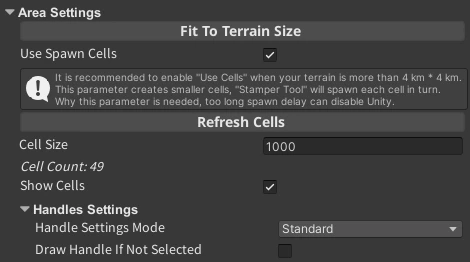
Area controls
Fit To Terrain Size — resizes the area to exactly match the bounds of your Unity Terrain (or multiple terrains). Use this as a first step when you want to cover the whole terrain in one spawn pass.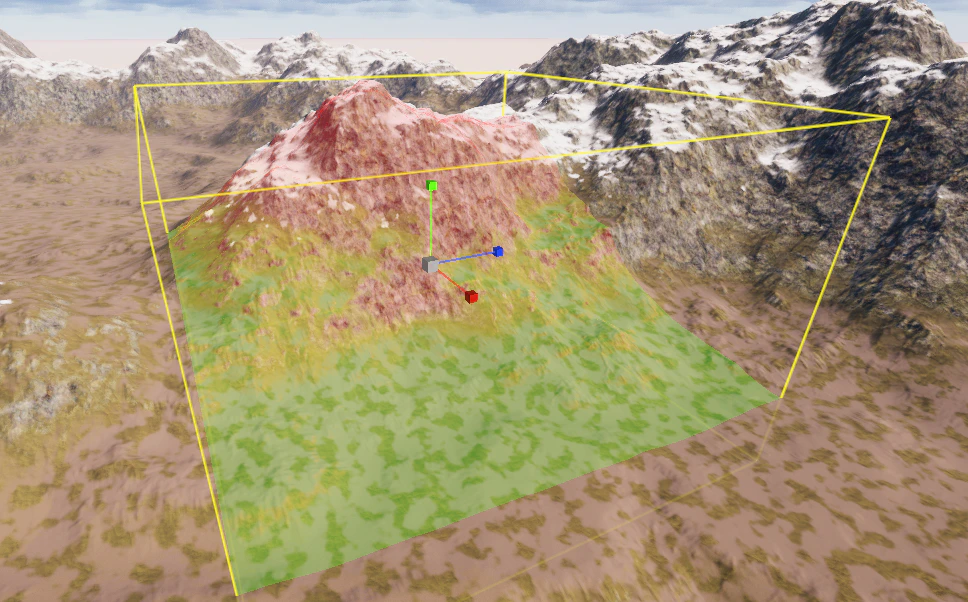
Spawn Cells
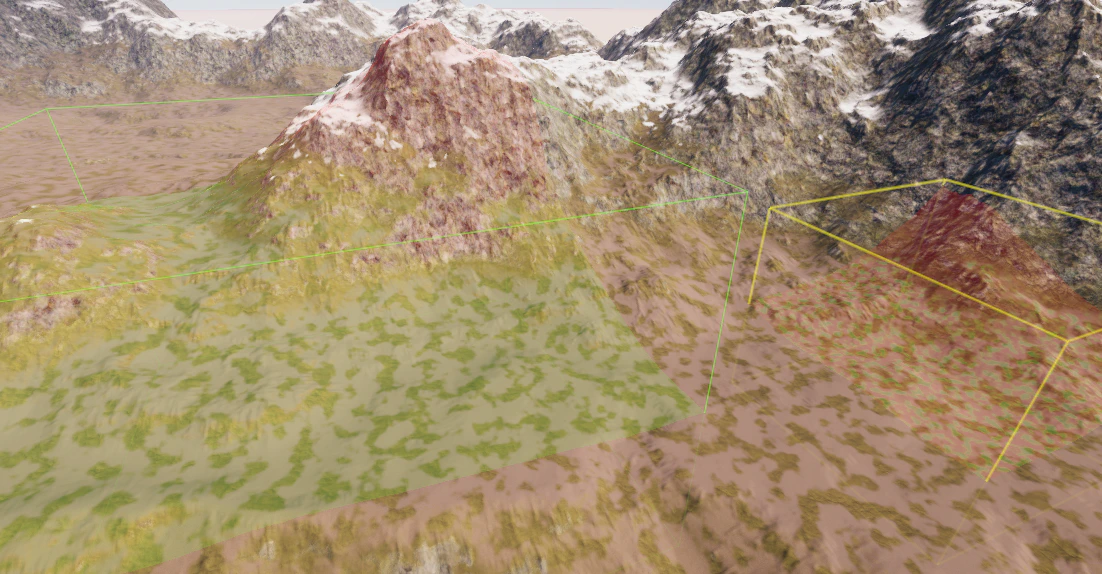
Use Spawn Cells — divides the stamper area into a grid of cells, each spawned independently. This is the recommended approach for very large terrains because it prevents long freezes and avoids Unity crashes that can occur when trying to process a huge area in a single pass. When enabled, three additional options appear:- Refresh Cells — recreates the cell grid. Run this after resizing the area or changing Cell Size.
- Cell Size — the side length of each cell in meters. Smaller cells use less memory per pass but increase the number of spawn operations.
- Show Cells — draws the cell grid in the scene view so you can verify the coverage.
Handle Settings
Handle Settings control how the stamper area box is drawn in the scene view. Handle Settings Mode — switches between display modes for the area box. Color Cube — the color of the area box wireframe. Pixel Width — the line thickness of the area box in pixels. Dotted — draws the area box edges as dashed segments instead of solid lines. Draw Handle If Not Selected — when enabled, the area box and visualization remain visible even when the stamper GameObject is not selected in the Hierarchy. This is useful when you want to compare two stampers side by side, or monitor visualization output without keeping the Inspector focused on the stamper.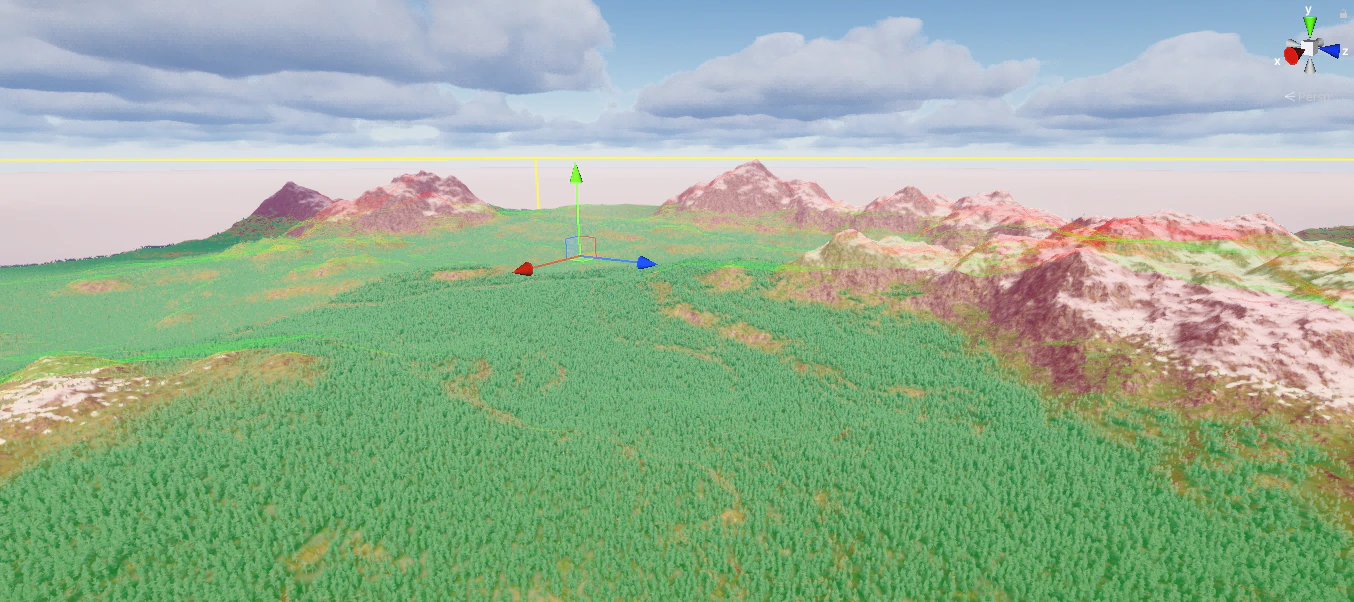
Tips
Set Fit To Terrain Size first, then enable Use Spawn Cells with a reasonable Cell Size before running a large spawn. This gives you predictable, crash-free generation over the whole terrain.
Use Draw Handle If Not Selected together with Enable Visualization on the Stamper Tool Controller to monitor filter coverage while adjusting settings in other components or windows.